A model viewer often needs a readable silhouette and a sense of volume before anyone has set up lights. A MatCap texture gives you both. Three.js looks up a color from a picture of a shaded sphere using the orientation of the surface relative to the camera. A single image can give clay, chrome, and ceramic very different looks.
Pick a texture that shows the shape
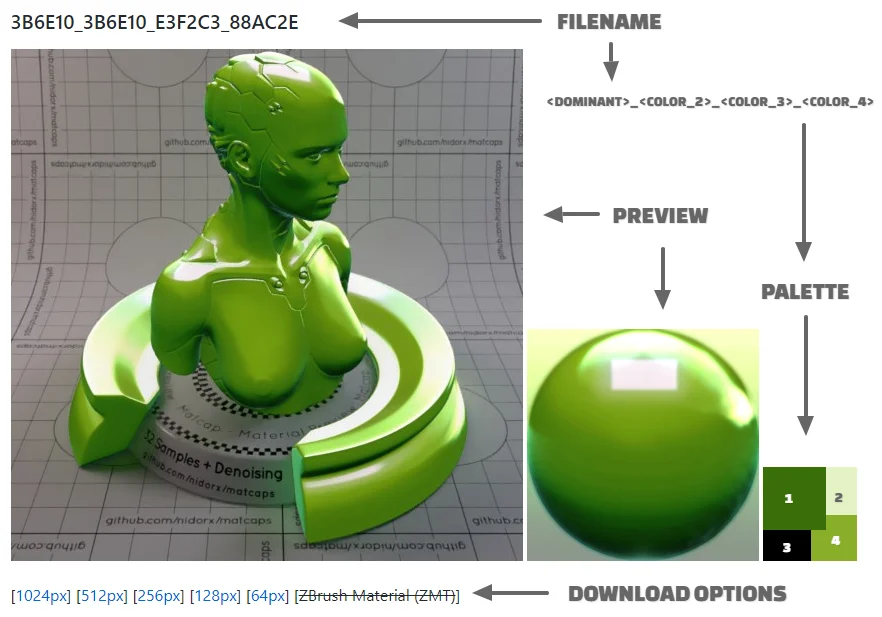
Open the MatCap library and choose a PNG. Try a soft clay or ceramic texture first. Broad transitions make it easier to spot dents and smoothing problems than a very sharp chrome highlight. A 256-pixel texture is a reasonable starting point for a preview. Compare it with a larger version at your actual viewing size before shipping the extra bytes.
Apply it to an existing mesh
Save the selected PNG as /matcaps/clay.png in your app’s public directory. This example assumes you already have a Three.js scene and a geometry with vertex normals.
import { Mesh, MeshMatcapMaterial, SRGBColorSpace, TextureLoader } from 'three';

const texture = await new TextureLoader().loadAsync('/matcaps/clay.png');
texture.colorSpace = SRGBColorSpace;

const material = new MeshMatcapMaterial({ matcap: texture });
scene.add(new Mesh(geometry, material));
Orbit around the object and look at the steepest curves. If the highlight has visible bands or hard seams, check the vertex normals and smoothing groups before trying a larger image. Mark the color PNG as sRGB so it enters the renderer’s color pipeline correctly.
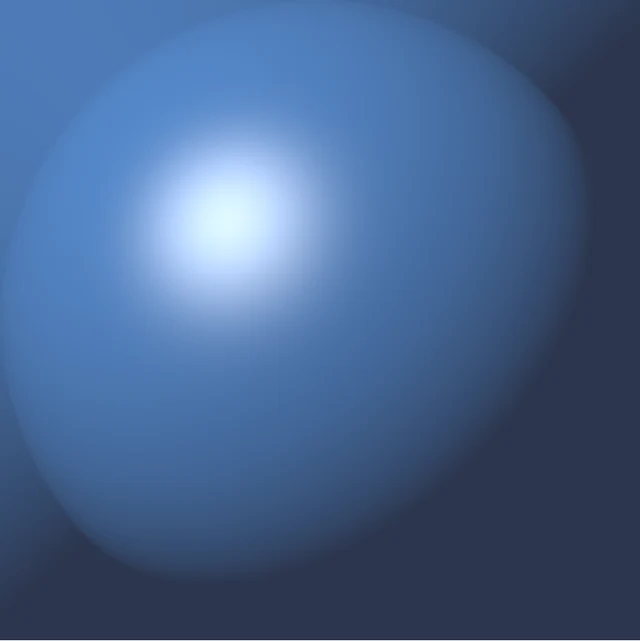
MeshMatcapMaterial. Its highlight comes from the texture, so moving a scene light cannot move that highlight.
Three3D texture generated for the comparison · Three.js material reference.One mesh under two materials
We rendered the same torus knot in Three.js r171 with two blue materials. The MatCap uses a generated 256-pixel sphere texture with a highlight painted into its shading. The standard material uses a directional light, roughness of 0.27, and metalness of 0.12. The background is a flat color. There is no environment map or ambient fill, so the direct light’s contribution is easy to isolate.
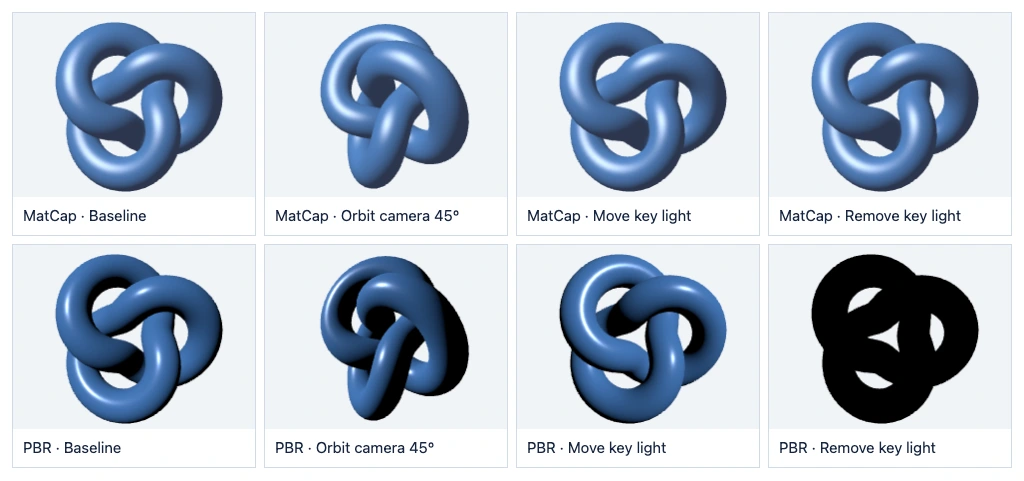
Orbit the camera 45 degrees. Both images change because different faces come into view. On the MatCap, surface normals facing the camera in the same direction continue to sample the same part of the texture. On the standard material, the light stays in world space and the highlight changes with the viewing direction.
Move or remove the light. We moved the key from the left to the right, then separately rendered the baseline with its intensity at zero. The MatCap output had identical pixel values in all three frames. The standard material’s bright side moved with the light, and the unlit knot appeared black. Adding the light back restores the highlight. An environment map would give the standard material a separate source of illumination.
Choose a preview material
| Preview goal | Material | Reason |
|---|---|---|
| Check a sculpt or mesh normals | MatCap | A broad highlight makes curvature and smoothing seams easy to inspect as the camera orbits. |
| Show a stable thumbnail on a phone | MatCap | A single color texture supplies the lighting pattern. Profile on your target device to measure the frame cost. |
| Evaluate a product in different lighting | Standard PBR | Scene lights, the environment, roughness, and metalness all contribute to the result. |
| Integrate an object into a lit room | Standard PBR | A nearby moving light or a change of environment should alter the object along with its surroundings. |
MeshMatcapMaterial · MeshStandardMaterial · Original article (Chinese)